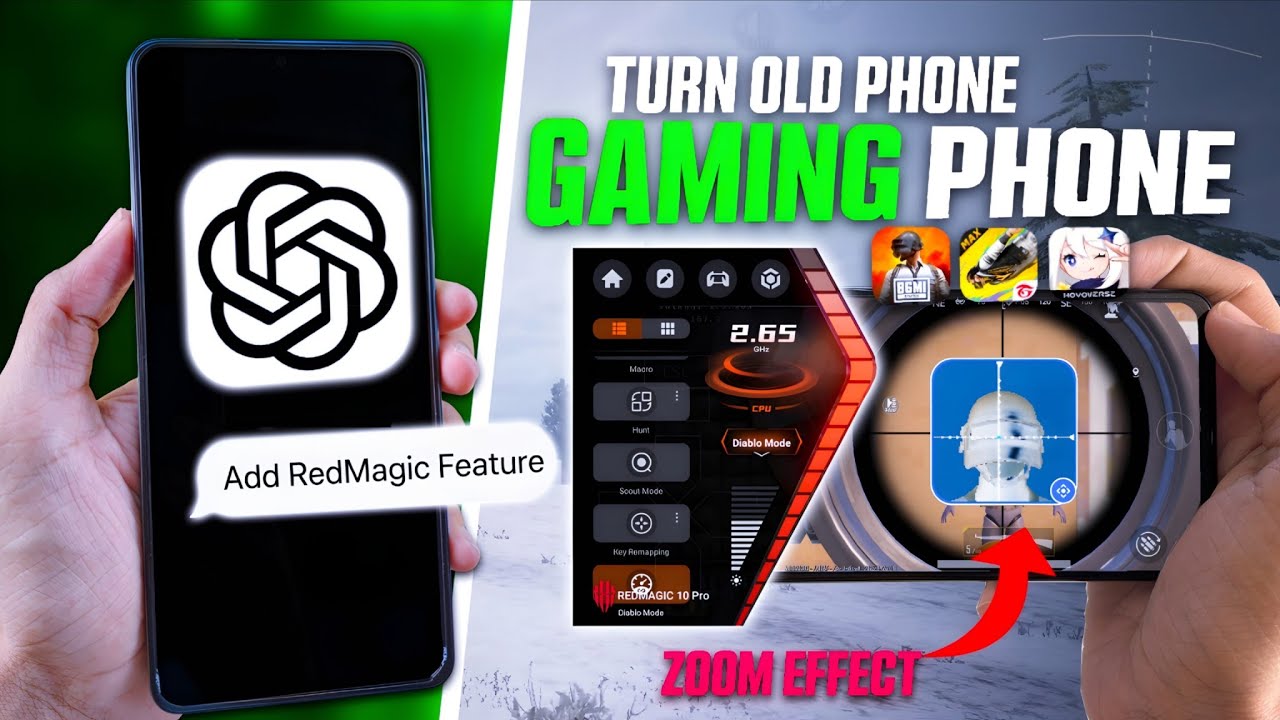
How to Convert Your Old Phone Into a Gaming Phone Using ChatGPT (No Root Required
Mobile gaming enthusiasts often struggle with lag, frame drops, and overheating when playing heavy titles like BGMI or Call of Duty Mobile on older or budget-friendly devices. Recently, YouTube creator notAYUSH GAMING demonstrated how to leverage ChatGPT to optimize a standard Android smartphone—transforming it into a dedicated gaming device capable of outputting high frame rates (up to 120 FPS) without needing to root the device.
By feeding ChatGPT specific prompts detailing the device model and the games played, the AI provided a multi-step optimization guide. Here is a breakdown of the process and how you can replicate it.
Step 1: Deep Cleaning RAM and Storage
The foundation of a good gaming experience is having enough available memory and storage. Background apps continuously consume system resources, causing your games to stutter.
- Clearing Cache: The first step is to manually go into your device settings and clear the cache data for your largest, most frequently used applications. This can instantly free up gigabytes of storage.
- App Hibernation: ChatGPT recommended using an app killer utility to put unnecessary background applications to sleep. By selecting all apps except your primary games and running the hibernation tool, you can disable up to 70+ background processes. This prevents background notifications from interrupting your gameplay and drastically improves RAM availability.
Step 2: System Optimization and Custom Commands
Many "Game Boosters" available on the internet or third-party stores are actually fake, loaded with malware, or actively track your data. The creator strongly advises scanning any unverified APKs through sites like VirusTotal before installation.
Instead of sketchy boosters, ChatGPT recommended using safe, command-based utility apps (which require Shizuku to be set up on your phone). These apps optimize the phone by executing secure shell commands rather than illegally modifying game files (which can lead to account bans).
- Performance Tweaks: Using these utilities, you can safely apply commands that disable low-power modes, remove background restrictions, and manage thermal throttling.
- Resolution and DPI Adjustments: Rendering fewer pixels takes a massive load off your device. The AI suggested reducing the phone's display resolution to 80% (for example, stepping down a 1080p display to around 864p) and automatically adjusting the DPI to match. This reduces GPU load by roughly 30-35% and yields a direct 10-15% boost in FPS.
- Choosing the Right GPU Driver: For newer processors (Snapdragon 870 and above), forcing the game to use Vulkan drivers is highly recommended, as it supports multi-thread rendering and smooths out frame pacing. For older processors, sticking to OpenGL yields better results.
Step 3: Unlocking "Red Magic" Gaming Features Safely
High-end gaming phones like the Red Magic series come with built-in tactical advantages, such as screen zooming and color manipulation. Surprisingly, you don't need a gaming phone or a third-party app to get these features—they are built right into standard Android settings.
- In-Game Zoom: By navigating to your phone's Accessibility Settings and enabling Magnification, you get a floating shortcut button on your screen. Tapping this allows you to instantly zoom in on the center of your screen while playing, effectively turning a basic scope into an 8x scope, making recoil control and headshots much easier.
- Spotting Hidden Enemies: By searching for Color Inversion in your settings and adding it to your accessibility shortcuts, you can instantly invert your screen's colors. This makes spotting prone or camouflaged enemies incredibly easy.
Because these features use Android's native system settings and do not inject code into the game, they are 100% safe to use and carry no risk of account bans.
Conclusion
Upgrading your mobile gaming experience doesn't always require buying a brand-new, expensive gaming phone. By utilizing AI to understand your specific device's bottlenecks, safely hibernating background processes, dialing back screen resolution, and taking advantage of built-in accessibility features, you can breathe new life into an older Android device.
(Note: Always be cautious when downloading third-party system tweaking apps, and ensure you are using reputable tools alongside secure setups like Shizuku.)
Discussion