How to Fix Lag on Old Phones (Complete Guide for Low-End Android Devices)
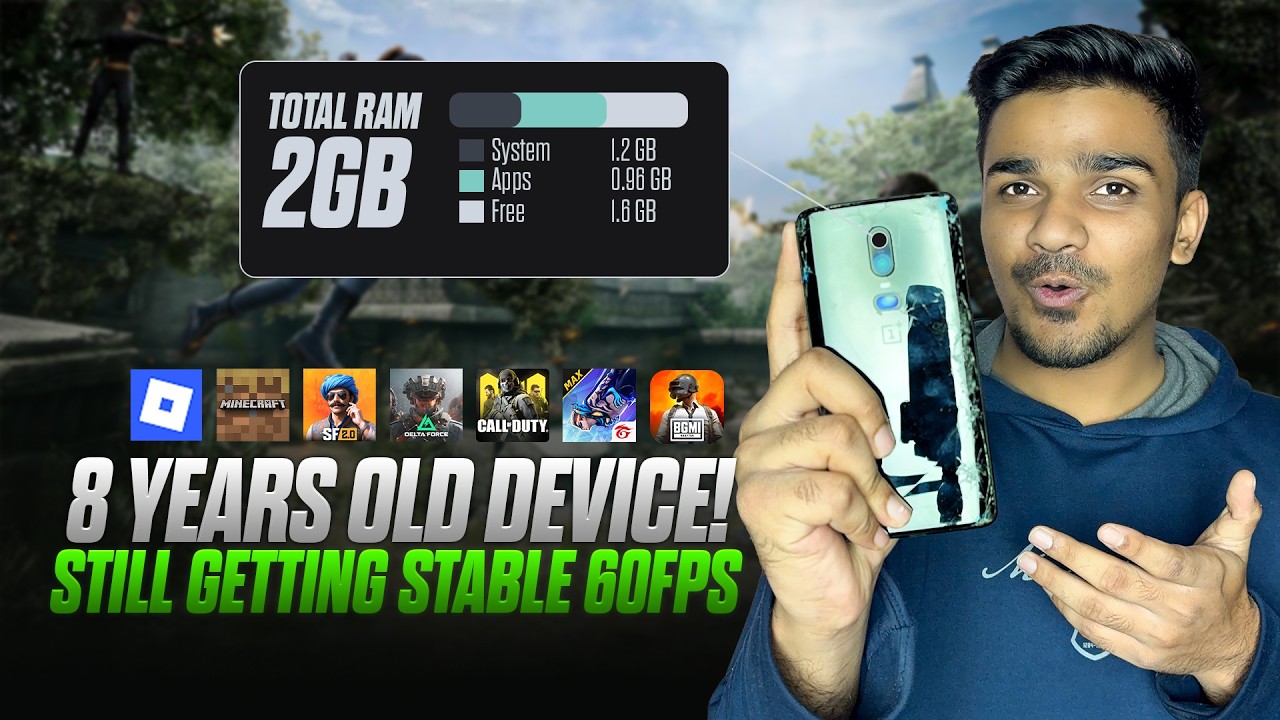
Many people still use old Android phones with 2GB RAM, 3GB RAM, or older processors, and over time these devices start lagging while opening apps, playing games, or browsing the internet. Fortunately, you don’t always need to buy a new phone. With the right settings and optimization tricks, you can significantly reduce lag and make your old phone run smoother.
This guide explains simple and effective methods to fix lag on old Android phones, especially low-end devices used for gaming or daily tasks.
Why Old Phones Start Lagging
Before fixing the problem, it’s important to understand why older phones become slow. The most common reasons include:
- Too many apps running in the background
- Full storage space
- Outdated apps or system software
- Heavy animations and visual effects
- Cache files and temporary data buildup
When these factors accumulate, your phone’s processor and RAM become overloaded, leading to slower performance and lag.
1. Restart Your Phone Regularly
The easiest way to reduce lag is simply restarting your phone.
Restarting clears temporary memory and stops unnecessary background processes that slow down your device. Even Google recommends restarting when troubleshooting performance issues.
How to do it
- Hold the power button.
- Tap Restart.
- Wait for the phone to reboot.
Doing this once every few days helps keep your device running smoothly.
2. Free Up Storage Space
Low storage is one of the biggest reasons old phones lag.
When storage becomes almost full, Android struggles to process files and apps efficiently.
What you should do
- Delete unnecessary photos and videos
- Remove unused apps
- Clear downloads folder
- Move files to cloud storage or SD card
Keeping at least 20-25% free storage can noticeably improve performance.
3. Uninstall Unused Apps
Many apps run background services even when you’re not using them. These processes consume RAM and CPU power.
Fix
- Go to Settings → Apps
- Uninstall apps you don’t use
- Disable preinstalled apps you cannot remove
Removing unnecessary apps reduces system load and improves speed.
4. Limit Background Apps
Old phones have limited RAM, so allowing too many apps to run in the background causes heavy lag.
You can limit background processes using Developer Options.
Steps
- Go to Settings → About Phone
- Tap Build Number 7 times to enable Developer Options
- Open Developer Options
- Find Background Process Limit
- Set it to At most 4 processes
This reduces RAM usage and keeps your phone responsive.
5. Disable Animations
Android uses animations when opening apps, switching screens, or navigating menus. On powerful phones this looks smooth, but on older devices it slows everything down.
Disabling animations can make your phone feel much faster.
How to disable animations
- Enable Developer Options
- Find these options:
- Window Animation Scale
- Transition Animation Scale
- Animator Duration Scale
- Set them to 0.5x or Off
Reducing animations improves responsiveness significantly.
6. Clear App Cache
Apps store temporary data called cache files. Over time these files accumulate and slow down the phone.
Clearing cache removes unnecessary data and improves performance.
Steps
- Go to Settings
- Open Apps
- Select an app
- Tap Storage
- Click Clear Cache
This does not delete personal data like accounts or settings.
7. Update Apps and System Software
Updates often include bug fixes, performance improvements, and optimization patches.
Check updates
- Open Google Play Store → Manage Apps
- Update installed apps
- Check System Updates in phone settings
Running outdated apps can cause slow performance and compatibility issues.
8. Use Lite or Go Apps
Many modern apps are heavy and require powerful hardware.
A great solution is using lite versions of apps designed for low-end phones.
Examples include:
- Facebook Lite
- Messenger Lite
- YouTube Go
- Google Go
These apps consume less RAM and storage, making them ideal for older devices.
9. Remove Widgets and Live Wallpapers
Widgets constantly update information like weather, news, or social media feeds. This background activity consumes RAM and battery.
For better performance:
- Remove unnecessary widgets
- Use static wallpapers instead of live wallpapers
- Keep the home screen simple
A clean home screen can improve device responsiveness.
10. Factory Reset (Last Option)
If your phone still lags badly after trying all methods, performing a factory reset can restore original performance.
This removes:
- Junk files
- Corrupted data
- Unnecessary apps
Important
Backup your data before resetting because all files will be deleted.
Factory reset should only be used as a last resort.
Bonus Tips to Reduce Lag
Here are a few additional tricks that can help older phones run better:
- Use Dark Mode to reduce GPU usage
- Turn off auto-sync for unnecessary apps
- Avoid installing heavy games
- Close apps after using them
- Use lightweight launchers
Small optimizations combined together can greatly improve performance.
Final Thoughts
Old phones don’t have to become unusable. With simple tweaks like freeing storage, limiting background apps, disabling animations, and clearing cache, you can dramatically reduce lag and improve performance.
These techniques help low-end devices run smoother for gaming, browsing, and everyday tasks without needing to upgrade immediately.
If your phone is still slow after trying these fixes, then hardware limitations might be the issue, and upgrading to a newer device may be the best solution.
Discussion