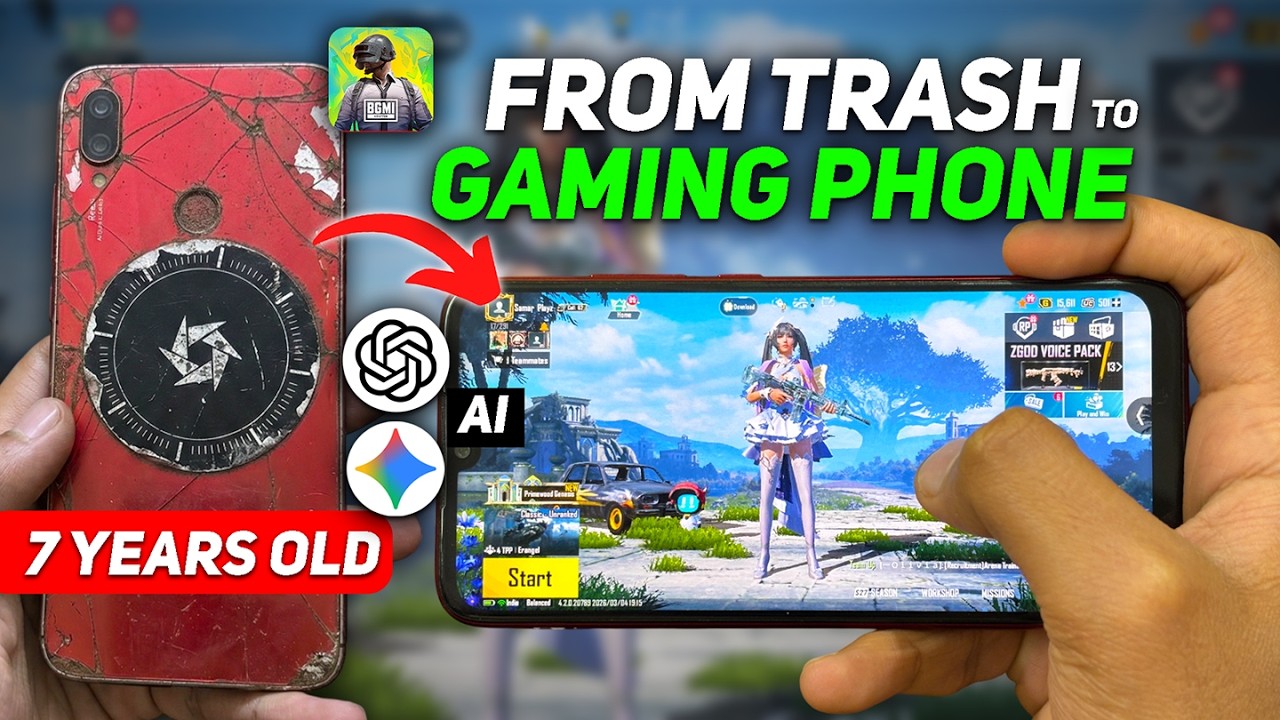
How to Turn a 7-Year-Old Phone into a Gaming Beast: Full Tutorial, Tips & Tricks
Do you have an old smartphone lying around that struggles to even open basic apps without lagging? Over time, phone manufacturers roll out heavy software updates that bog down older processors. Even navigating the UI can become a frustrating experience, let alone trying to play games like BGMI or PUBG Mobile.
In a recent experiment, a YouTuber took a 7-year-old Redmi Note 7 (running a Snapdragon 660 processor) that struggled to hit even 30fps and transformed it into a smooth, 60fps-capable gaming phone in just a few steps. The secret weapon? Custom ROMs.
Here is a full breakdown of the tutorial, along with the tips and tricks shared in the video.
Why Do Old Phones Lag, and How Does a Custom ROM Help?
As smartphones age, official UI updates (like MIUI, OneUI, etc.) become heavier. A standard phone might have 150 to 200 background processes running simultaneously. This consumes massive amounts of RAM and CPU power, leaving nothing for gaming.
A Custom ROM is a modified, lightweight version of the Android operating system. It removes unnecessary bloatware and cuts down background processes to as few as 40. Furthermore, many Custom ROMs include custom kernels that safely over-clock your CPU and GPU, extracting the maximum performance out of aging hardware.
For example, the creator used a lightweight, Pixel-based ROM (like Havoc OS / Evolution X) that provides a pure, minimal Android experience. The result? A 200% performance boost, zero UI lag, and stable 60fps gaming on a 7-year-old device.
Full Tutorial: How to Install a Custom ROM
⚠️ Disclaimer: Installing a Custom ROM will erase all your data and carries the risk of "bricking" (breaking) your phone. Please back up your data and proceed at your own risk.
The installation process generally consists of three main steps:
Step 1: Unlock the Bootloader
The bootloader tells your phone how to start the operating system. By default, manufacturers lock it so you can only run official software.
- Check Compatibility: Not all brands allow bootloader unlocking. Brands like Xiaomi, Poco, Motorola, OnePlus, and Nothing generally allow it, while others strictly block it.
- Unlock Process: You will need to request unlock permissions from your manufacturer (usually via developer options and a specific PC tool). You can use AI tools by prompting: "Provide step-by-step instructions to unlock the bootloader for [Your Phone Model]."
Step 2: Install a Custom Recovery (TWRP / OrangeFox)
A custom recovery replaces your phone’s default recovery mode, allowing you to install third-party OS files.
- Download the correct Custom Recovery image for your specific phone model.
- Flash it onto your phone using a PC (usually via ADB/Fastboot commands).
Tip: Again, you can ask an AI tool for the exact fastboot commands and download links for your specific device model.
Step 3: Flash the Custom ROM
Once your bootloader is unlocked and custom recovery is installed, you are ready for the final step!
- Download the ROM: Go to Google and search for "[Your Phone Model] Custom ROM". XDA Developers is usually the best place to find these. Choose a lightweight, gaming-focused ROM.
- Boot into Recovery: Turn off your phone. Hold the Power Button + Volume Up simultaneously until the recovery screen appears.
- Flash the Zip File: Locate the downloaded Custom ROM zip file in your storage and swipe to flash/install it.
- Format Data: Crucial Step! Go to the 'Wipe' section and select 'Format Data'. If you skip this, your phone will be stuck on the boot logo.
- Reboot: Restart your phone. It may take 4–5 minutes for the first boot. Set up your phone, download your games, and enjoy!
Pro Tips & Tricks for the Best Experience
- Unlock Higher FPS with Modules: Even after installing the ROM, you can push the limits further. By rooting your phone via Magisk, you can flash specific kernel modules to force-unlock 90fps or 120fps in games like BGMI, overriding the default phone limits.
- Expect Battery Improvements: Because Custom ROMs kill unnecessary background tasks, battery life usually improves drastically. The creator noted that their battery only dropped by 10% overnight, compared to massive drains on the official OS.
- Safety & Security Risks: Custom ROMs are built by independent developers using open-source Android code. Because of this, it is highly recommended NOT to use Custom ROM phones for banking or sensitive data. Keep this phone strictly as a secondary gaming console.
- Keep Your Battery Charged Before Flashing: Never start the flashing process with a low battery. If your phone dies midway through Step 3, it will corrupt the system and hard-brick your device.
- Read the Instructions: Every Custom ROM has specific developer notes. Always read them before downloading. Some ROMs require a specific version of Android firmware or a specific Custom Recovery to work properly.
By dedicating just a little bit of time to software modification, you can save money, reduce e-waste, and turn a forgotten smartphone into an incredible dedicated gaming machine!
Discussion